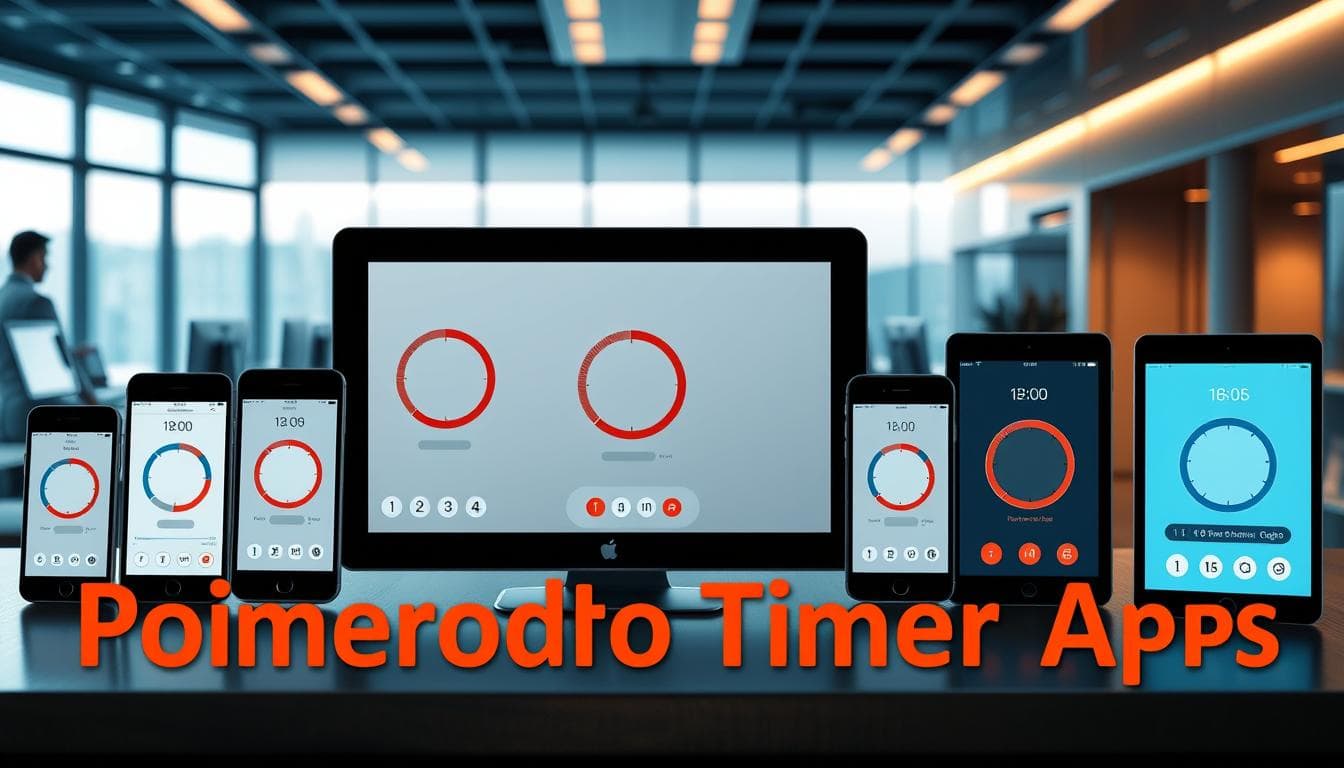
Looking for a timer that actually helps you get more done? This guide walks through the best pomodoro technique apps for web, desktop, and mobile so you can pick the one that fits your workflow.
A good pomodoro app is more than a countdown: it switches between work and break automatically, logs sessions, and slips into your day without extra effort. The right tool protects your focus and turns short bursts of time into measurable progress.
Below you’ll find practical picks organized by use case—minimal friction, billing and analytics, team coordination, and mobile focus—so you can test one quickly and adapt it to your plan.
Note: the Pomodoro Technique began in the late 1980s with Francesco Cirillo using a kitchen timer shaped like a tomato; that origin is still the easiest way to explain the method’s 25/5 rhythm (source: francescocirillo.com).
Introduction to the Pomodoro Technique
The pomodoro technique started as a simple, practical response to distraction and has since become a widely used time management method. Its origin underscores that effective timeboxing began as a low-tech habit rather than a corporate invention.
Origin and History
In the late 1980s Francesco Cirillo developed the method while he was a university student in Italy, using a kitchen timer shaped like a tomato to block focused work intervals (source: francescocirillo.com).
Cirillo experimented with different interval lengths before settling on the version most people recognize today: roughly 25 minutes of focused work followed by a 5-minute break. The name “pomodoro” comes from the Italian word for tomato, inspired by that original timer.
How the Technique Works
The classic cycle is intentionally simple: choose a task, set a timer for 25 minutes, work without interruption, then take a 5-minute break. After four such cycles, take a longer break (commonly 15–30 minutes) to recharge.
| Cycle Phase | Duration | Purpose | Frequency | |||
| Focused Work | 25 minutes | Deep concentration | Repeated 4 times |
| Short Break | 5 minutes | Mental recovery | After each work session |
| Long Break | 15-30 minutes | Complete recharge | After 4 cycles |
The beauty of the method is that it makes large tasks manageable. For example, a 1,000-word article can be split into four pomodoro sessions: research (1), outline (1), draft (1), and edit (1). Try one 25/5 session now with a single-click web timer to see how it feels.
Understanding the Benefits of Focused Work
Timed sessions change how you spend attention and time: short, deliberate intervals reduce procrastination and make progress visible. The pomodoro technique turns vague intentions into repeatable units of work, which helps sustain momentum across a day.
Boosting Productivity Naturally
Breaking big tasks into smaller sessions reduces overwhelm and raises throughput. One study referenced by the American Psychological Association notes that many people sustain peak attention for roughly an hour at a time, which supports using shorter blocks within that window (source: APA).
Applying strict timers forces you to define scope for each session—what you will and won’t do in the next 25 minutes—so work doesn’t expand indefinitely (Parkinson’s Law). That urgency often means you complete more meaningful work in less clock time.
Short breaks prevent cognitive fatigue by giving your brain a brief recovery period: five minutes to stretch, hydrate, or look away from screens maintains energy for the next session.
Managing Distractions Effectively
Knowing a break is minutes away makes it easier to defer interruptions. Instead of answering an email mid-session, you can add it to a single short-break task list and handle it later, preserving deep focus.
Brief pauses also support creativity and decision-making: studies show micro-rests improve performance on tasks requiring sustained attention and problem solving (cite specific study when publishing).
Practical example: two 25-minute sessions give you 50 minutes of focused work; add a 10-minute break and you have a compact, productive cycle that can be repeated through the day. Try tracking three such cycles to measure whether your output improves over a week.
How Pomodoro Technique Apps Enhance Your Workflow
The right pomodoro app turns a manual kitchen timer into an integrated productivity tool: automatic cycles, session logs, and links to your tasks and calendar make focused work repeatable and measurable.
Automation reduces friction by removing the need to reset timers or watch the clock. Good apps auto-start the next session, switch to break mode, and can even silence notifications so your focus isn’t interrupted.
- Automation: automatic cycling, start/stop shortcuts, and Do Not Disturb hooks.
- Analytics: session counts, time distribution, and peak-hours visualization.
- Integration: connect timers to calendars, task managers, and time-tracking tools.
- Distraction control: website/app blocking and focus mode toggles.
Beyond timing, these apps provide productivity analytics that reveal when and on what you do your best work. For example, Toggl Track offers integrations with Asana, Trello, and Slack so pomodoro sessions can become billable time entries tied to specific projects (source: Toggl integrations).
Integration capability determines whether the timer is an isolated tool or part of your workflow. Session apps that link to calendars let you block focus time without duplicating effort—Session and similar tools can update your calendar or Slack status automatically (verify in each app’s docs).
Quick test: pick an app, connect it to your calendar or task manager, start a 25-minute session, and confirm the session appears in your calendar or creates a time entry—this takes under two minutes and shows whether the integration actually saves you time.
Key Features to Look for in Pomodoro Timer Apps
Not all timers are created equal. When choosing a pomodoro app, focus on features that turn single countdowns into actionable time management tools: customization, session data, integrations, and distraction controls.
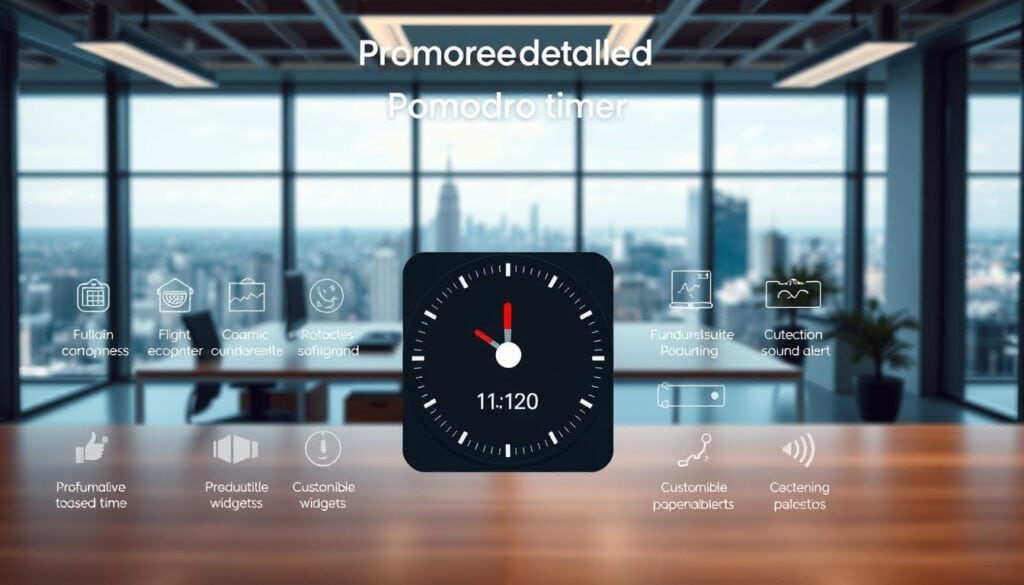
- Interval customization — change work and break lengths to match the task (example: 50/10 for deep writing). Many web timers, like Pomofocus, let you set custom minutes per session (verify on Pomofocus docs).
- Session analytics — look for apps that log pomodoro sessions and visualize time spent per project so you can spot peak hours and adjust your plan.
- Integrations — calendar and task manager connections reduce context switching; apps that push sessions to your calendar or create time entries turn focused work into billable or tracked time.
- Distraction controls — features such as website blocking, focus mode, and automatic Do Not Disturb prevent interruptions during a session.
- Visual and audio cues — clear countdown displays and unobtrusive alerts help you maintain rhythm without breaking flow.
| Feature Category | Primary Benefit | Implementation Level | Impact on Workflow | |||
| Interval Customization | Personalized work rhythm | Essential | High |
| Session Analytics | Performance insights | Advanced | Medium-High |
| Tool Integration | Workflow connectivity | Premium | High |
In practice, pick the two features that would save you the most time—if you bill hours, prioritize integrations and time tracking; if you struggle to start, prioritize distraction controls and a simple timer. One quick setup: create a 50/10 custom timer in any app that supports custom minutes and run three sessions to test whether longer intervals improve your output.
Reviewing Top “pomodoro technique apps” for Productivity
The most useful pomodoro apps share a single trait: they make starting a session almost effortless. Interface and setup friction determine whether a timer becomes part of your routine or another abandoned tool.
Below are concise mini-reviews organized by a uniform template: quick summary, who it’s best for, notable pros and cons, price, and a one-line verdict. Each entry names a clear weakness so you can match trade-offs to your workflow.
Pomodor — The Simple Web-Based Timer
Quick summary: A zero-friction web timer that runs in your browser tab and starts immediately.
Best for: Minimalists who want a free pomodoro timer without accounts or installs.
- Pros: Instant access, tab title countdown, basic session count.
- Cons: No cross-device sync, limited analytics.
- Price: Free.
- Verdict: Best for trying pomodoro sessions quickly — winner for low-friction use.
Otto — Chrome Extension with Blocking and Gamification
Quick summary: A browser extension that combines pomodoro timers with website blocking and light gamification.
Best for: Windows and Chrome users who need distraction control while working online.
- Pros: Built-in website blocking, playful gamified UI to encourage consistency.
- Cons: Extension-based (limited outside browser), some advanced analytics behind paid plans.
- Price: Free tier available; paid plans unlock analytics and advanced features (verify current pricing on Otto’s site).
- Verdict: Best for blocking browser distractions during sessions — winner for browser-based focus.
Forest — Gamified Mobile Focus
Quick summary: A mobile-first app that grows virtual (and real) trees while you complete pomodoro sessions.
Best for: People who need visual motivation to stay focused on phones.
- Pros: Strong motivation through gamification, social features, option to fund real tree planting.
- Cons: Analytics are limited compared with time-tracking apps; mobile-only approach may not suit desktop-heavy workflows.
- Price: iOS one-time fee (example: $3.99 on App Store); Android has free ad-supported and paid options (check store listings for current prices).
- Verdict: Best for mobile motivation — winner for phone-based focus and habit-building.
Session — Feature-Rich for Apple Users
Quick summary: An Apple-optimized pomodoro app that integrates with calendar, Shortcuts, and Slack.
Best for: Professionals deeply embedded in the Apple ecosystem who want automated workflows.
- Pros: Sync across Mac, iPhone, iPad, and Apple Watch; calendar and Slack integration; advanced automation via Shortcuts.
- Cons: Mac/iOS-only; Pro features require subscription (confirm current pricing on Session’s site).
- Price: Free tier with paid Pro plan (e.g., monthly/annual options listed on vendor site).
- Verdict: Best for Apple users who want deep integration and automation — winner for Apple ecosystem.
Flow — Minimalist Pomodoro for Mac
Quick summary: Lightweight, menu-bar timer with blocking features and a low-cost premium tier.
Best for: Mac users who want a simple menu-bar timer with optional site blocking.
- Pros: Menu bar access, floating window option, website/app blocking, free version with core features.
- Cons: Mac-only; analytics and advanced reporting are limited compared to premium competitors.
- Price: Free basic version; reasonably priced premium plan (verify current rates on Flow’s site).
- Verdict: Best budget option for Mac — winner for price-to-features balance on macOS.
Toggl Track — Pomodoro Meets Time Tracking
Quick summary: A full-featured time tracker that supports pomodoro sessions and ties them to billable entries.
Best for: Freelancers and teams who need accurate time tracking and reporting tied to focused work.
- Pros: Automatic time entries from sessions, robust analytics, integrations with Asana, Trello, Slack, and other tools (see Toggl integrations).
- Cons: More features mean a steeper learning curve; best value appears when you use paid plans for team reporting.
- Price: Free tier with basic time tracking; paid plans for advanced reporting and team features (verify current pricing on Toggl’s site).
- Verdict: Best for billing and analytics — winner for professional time tracking.
How They Compare: Interface and Ease of Use
One consistent finding: apps that place a visible timer in your menu bar or browser tab reduce start friction and increase session consistency. Choose the app that minimizes clicks in your most-used environment (browser, Mac menu bar, mobile home screen).
Pricing and Free Versions
Many of these apps offer usable free versions: Pomodor and Flow provide core timers at no cost, Forest has a low-cost mobile option, and Toggl’s free tier supports basic session-to-time-tracking needs. If you need analytics or team features, budget for a paid plan.
Single Weakness Summary (so you can pick)
- Pomodor — no sync or deep analytics.
- Otto — browser-limited; not ideal for offline desktop work.
- Forest — mobile-first and limited analytics for desktop tracking.
- Session — Apple-only; costlier for cross-platform teams.
- Flow — macOS-only with limited reporting.
- Toggl Track — complexity and cost for full team analytics.
Alternative Pomodoro Apps for Varied Workflows
The pomodoro apps above cover common needs, but specialized tools can fit specific workflows better—whether you want zero-commitment web timers, project-integrated timers, or Slack-synced team sessions.

Options for Casual and Power Users
- Casual users: web-based timers like Pomofocus offer instant use with no install or account—great for testing the pomodoro technique and running occasional sessions.
- Power users: project platforms such as Paymo and ClickUp include built-in timers and time tracking so pomodoro sessions feed directly into project time logs (check each product’s docs to confirm exact features).
- Teams: tools like FocusMode by Geekbot or Slack-integrated timers sync focus sessions across channels and set Do Not Disturb status to reduce interruptions during coordinated work blocks.
- Freelancers: solutions such as Focus Booster and Toggl Track merge pomodoro sessions with billable time entries for easier invoicing and client reporting.
Choose alternatives that integrate with your existing task manager or communication platform so pomodoro sessions map directly to your workflow instead of creating another isolated timers list.
Advanced Pomodoro Setup Strategies for Professionals
Once you’ve tested the basic 25/5 cycle, adapt session lengths and scheduling to task type and energy. Advanced users treat the pomodoro technique as a flexible framework rather than a strict rule.
Adapting Timer Lengths to Task Types
- Deep creative work: try 50–75 minute blocks with 10–15 minute breaks for sustained concentration.
- Analytical or administrative tasks: use shorter 25–30 minute sessions to maintain momentum without cognitive overload.
- Morning peak-energy sessions: schedule two longer blocks (50 minutes each) for heavy tasks, then switch to shorter maintenance sessions in the afternoon.
Research on optimal work/rest ratios varies; one practical approach is testing different minute configurations over a week and measuring output. For example, compare three 50/10 cycles versus six 25/5 cycles and note which yields higher-quality work.
Combining Pomodoro with Other Productivity Techniques
- Pair timers with automatic time tracking: let a tracker record actual time entries while your pomodoro timer sets pace and enforces breaks.
- Use full-day planning: map your day into variable-length sessions (deep work, meetings, admin), then assign pomodoro sessions to each block so tasks don’t expand to fill the whole day.
- End-of-day countdown: schedule a final short series of sessions to create urgency and finish remaining tasks without overtime drift.
One-Day Try-It Plan (mini CTA)
Try this sample plan tomorrow: three morning deep sessions (50/10) for your top tasks, a 45–60 minute lunch break, then two afternoon maintenance sessions (25/5) for emails and small tasks. Track the total focused minutes and how many tasks moved to completion to compare against a regular day.
Pomodoro Technique Apps for Teams and Collaborations
Team productivity needs tools that synchronize focus across people and workflows, not just individual discipline. Collaborative pomodoro apps turn solitary timers into coordinated practice by connecting sessions to tasks, calendars, and team statuses.
Project-management integrations are particularly valuable: some tools let teams start a focus session directly from a task card in Trello, Asana, or Jira so time spent maps to actual work items.
Integration with Project Management Tools
Linking timers to project platforms removes manual logging and creates visible progress. For example, apps that push session data into task managers or time-tracking systems let managers see which tasks get focused time and how many minutes each task received.
This creates accountability through visible progress tracking, but make sure the integration suits your workflow—some integrations only create notes, while others add billable time entries.
Slack and Status Integrations
Slack integration reduces interruptions: certain apps can set a Do Not Disturb or update your Slack status during a session so teammates know when not to ping you. That simple signal improves team flow without changing communication norms.
Weakness to note: automated status changes can confuse teammates if not paired with agreed-upon norms—establish team rules about when focus blocks are respected and when urgent messages still go through.
Enhancing Team Focus and Communication
Social features like shared goals, team leaderboards, or synchronized start times use social accountability to increase adherence. Taskade, FocusMode-style tools, and some integrations let teams run communal pomodoro sessions so breaks and work align across members.
Coordination across time zones is the main challenge; successful adoption requires explicit norms about overlap hours and a clear policy for asynchronous work.
Choosing the Best Pomodoro Timer Based on Your Workflow
The best pomodoro timer is the one that disappears into your workflow. Match the tool to how you work rather than hunting for the most features.
- Calendar-first: choose Reclaim or calendar-integrated timers that auto-schedule and defend focus blocks (verify auto-scheduling settings before enabling to avoid overwriting events).
- Billing & analytics: Toggl Track — winner for time tracking and reporting tied to pomodoro sessions (strong integrations with Asana, Trello, Slack).
- Remote team coordination: pick tools with Slack status and shared sessions; ensure they support your time zones.
- Minimalists: use zero-friction web timers like Pomofocus for quick sessions without installs.
One-line weakness summary: Reclaim can be aggressive with auto-scheduling if not configured; Toggl Track adds complexity for solo users; Slack-status tools need team norms; Pomofocus lacks deep analytics.
Tips for Maximizing Productivity During Pomodoro Sessions
Treat breaks as part of the work system—not optional downtime. Scheduling and protecting short recovery periods makes focused sessions sustainable and helps you avoid burnout over the long term.
Practical Strategies for Break Management
Use breaks for true recovery: stand and move, hydrate, or look away from screens. Mapping breaks as non-billable time in your tracker makes it easier to actually take them and prevents them from turning into guilt-laden interruptions.
If a scheduled break feels disruptive at first, stick with it for a week; consistent practice builds a reliable rhythm that reduces cognitive fatigue and improves daily output.
Long-Term Benefits of Consistent Use
Consistency beats perfection. Completing a few focused sessions each workday trains sustained attention and reduces the instinct to switch tasks; over weeks this can measurably increase throughput and decrease time lost to distractions (track minutes to verify your own gains).
Small, regular sessions are easier to maintain than occasional deep marathons—treat the pomodoro technique as training for concentration rather than a one-off hack.
Conclusion
Pick a low-friction timer that fits your existing workflow and use it consistently: start simple, then add analytics or integrations when you need them. For most people, a free web timer or a mobile app like Forest is a good place to begin; upgrade to Toggl Track or Session when billing or team reporting requires it. My recommendation: start with a free option and measure session minutes for two weeks before paying for advanced features.