The pace of image enhancement has changed—tasks that once required hours of manual work now often complete in minutes with modern software. This guide highlights which solutions actually save time and produce usable, professional results without demanding a steep learning curve.
We ran a short, focused evaluation window across dozens of platforms to separate marketing claims from practical performance. Our review emphasized measurable outcomes—output quality, interface clarity, and real-world time savings—so you can pick an editor that fits your workflow.
Pricing varies widely: some services charge premium fees for mediocre results while others include advanced features for a fraction of the cost. Prioritize return on investment—choose tools that reduce editing time, raise image quality, and justify their monthly fee.
This guide points to editors that deliver professional-grade edits without requiring a design degree. Try free trials and small test projects to confirm which tool saves you the most time.
Introduction to the AI Photo Editing Revolution
Image editing has evolved gradually rather than as a single overnight shift: tools like Content-Aware Fill have been around since 2010, and more recent model-driven features build on that foundation (see Adobe’s Content-Aware Fill notes: https://helpx.adobe.com/photoshop/using/content-aware-fill.html). The updates now make many routine corrections faster and more accessible without removing the need for human judgment.
We looked for editors that do more than basic brightness or filter tweaks—our focus is on applications that suggest intelligent adjustments and execute complex fixes reliably.
Why AI is Changing Image Editing
AI alters typical workflows by reducing repetitive manual steps. For example, removing a subject and filling the background can take a skilled retoucher 15–45 minutes manually, while Photoshop’s generative or content-aware tools can produce usable results in under a minute for many images (typical ranges depend on image complexity and user adjustments). The payoff is *time savings that let you spend more of your work on composition and design*.
That doesn’t mean skill is obsolete. The best photo editor combines automated options with manual controls so you can refine results—keeping creative control while accelerating editing.
Overview of the Product Roundup
Our methodology used a short, focused evaluation window across dozens of editors to separate marketing claims from practical value. We prioritized measurable outcomes: output quality, interface clarity, and the net time required to complete common adjustments.
Key capabilities we weighed heavily:
- Reliable background removal and object replacement that preserve fine details
- Face retouching and intelligent upscaling that avoid over-processing
- Generative fill or expand functions that produce contextually consistent content
Output quality was the primary filter—we recommend verifying results with before/after examples for any editor you consider rather than assuming perfection from marketing. Micro-TOC: Top tools covered below — Adobe Photoshop, Luminar Neo, Fotor, Pixlr/Canva, and emerging generator interfaces.
Key Features to Look for in Advanced Image Editors
When evaluating modern image editors, focus on the intelligence behind the features rather than surface-level filters. The best photo editors use machine learning to make complex edits faster while preserving natural detail.
Essential AI-Powered Capabilities
Professional-grade tools handle difficult tasks reliably—this separates polished editors from gimmicky apps.
We judged each image editor on these critical functions:
| Capability | Basic Performance | Advanced Performance | Our Testing Focus | |||
| Background Removal | Simple object cutouts | Hair and fur detail preservation | Edge quality and artifact-free blending |
| Sky Replacement | Flat overlay | Lighting and color matching | Depth and shadow consistency |
| Face Enhancement | Filter-like smoothing | Natural-looking retouching | Avoiding over-processing and skin texture loss |
| Generative Fill | Pattern repetition | Context-aware content creation | Semantic blending and continuity |
(Table note: “Our Testing Focus” measured visible edge artifacts, texture continuity, and whether generated content required heavy manual correction.)
Adobe announced Generative Fill for Photoshop in March 2023 as a mainstream example of this category (see Adobe’s announcement: https://blog.adobe.com/en/publish/2023/03/21/introducing-generative-fill-photoshop).
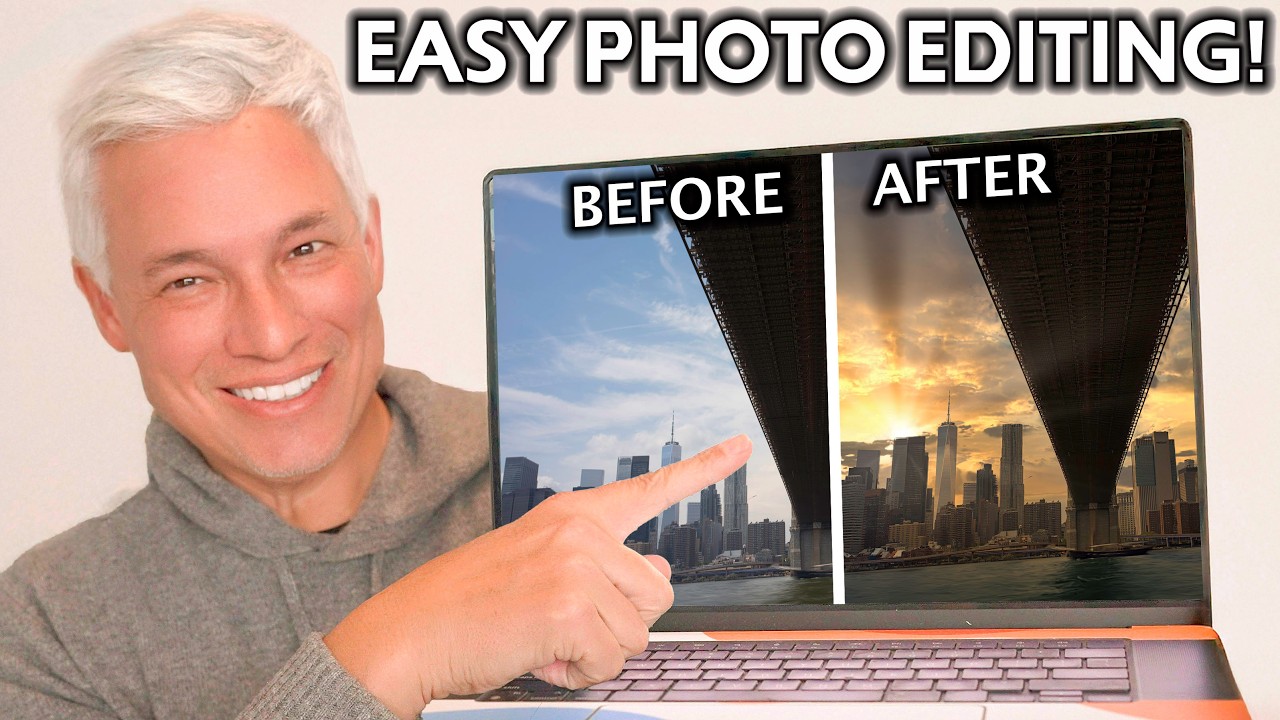
Watch the short demo below for examples of background removal and generative fill in action; look at the 0:40–1:20 range to see edge handling and the 2:10–2:40 range for fill blending.
User Interface and Ease of Use
Power matters, but so does accessibility. The ideal editor balances advanced options with clear controls so users can accept an automated result or fine-tune details.
Control matters more than automation.
We evaluated editors with both high-resolution DSLR images and typical mobile captures to assess versatility. The top tools provided logical placement of adjustments, accessible undo/brush controls, and non-destructive layers or history so edits could be refined without losing the original image.
In short: prioritize editors that combine robust ai-powered features with straightforward control—you get reliable results faster and still retain creative authority.
Comprehensive Overview of photo editing ai tools
Productivity gains from modern image platforms vary widely. A short, focused evaluation across dozens of editors showed clear differences between practical tools that speed real work and products that emphasize marketing over substance.
Good editors combine intelligent automation with manual controls so you can get quick results while still dialing in precise adjustments when needed.
Main Benefits of Using AI for Photo Editing
The primary benefit is time saved. Routine tasks that once took hours—cleaning a background, fixing exposure, or removing objects—now often complete in minutes with capable AI features, freeing you to focus on composition and design.
Cost efficiency differs between providers. Some charge premium monthly fees for features available elsewhere at a fraction of the price. A simple ROI test helps: if a tool saves more total editing hours per month than the cost divided by your hourly rate, it pays for itself.
AI tools also make professional-grade results accessible. Small businesses and solo creators can now produce product photos and marketing images that previously required hiring external editors.
| Benefit Type | Quality Implementation | User Impact | ROI Calculation |
| Time Savings | Minutes vs. hours on routine tasks | Faster turnaround | Hours saved × hourly rate > monthly cost |
| Quality Output | Reduced visible artifacts | Professional-grade images | Less rework required |
| Workflow Integration | Standard exports (PSD, TIFF, JPEG) | Smoother handoff | Training time saved |
| Creative Control | Manual override and layers | Preserved vision | Maintains brand consistency |
How to spot artifacts: zoom to 100% and check edges, texture consistency, and repeated patterns. If generated fills show obvious repetition or blurry seams, the result likely needs manual correction rather than being production-ready.
Quick ROI example: if a subscription costs $10/month and you value your time at $40/hour, saving 0.25 hours (15 minutes) per week yields 1 hour saved monthly, which equals $40 — a net benefit. Use that formula with your hourly rate and expected time savings to compare options.
Top tools: Fiverr, Fotor, Adobe Photoshop, Luminar Neo, Pixlr, and Canva
Fiverr AI Image Editing Service: A quick, pay-per-project option
Subscriptions dominate the image editor market, but a pay-per-project model can be the smartest choice for occasional needs. Fiverr connects you with skilled editors who use professional software to deliver finished images while you keep creative direction.

Why consider this approach: many editors charge $5–$20 per project, which is often cheaper than a monthly subscription for low-volume work. You get access to Photoshop-level capabilities without worrying about licensing or learning complex interfaces.
How Fiverr streamlines work
- Vetting: review ratings and portfolios before hiring.
- Revision safety: most gigs include limited revisions to match your brief.
- Speed: experienced editors can deliver polished results in hours for straightforward tasks.
Weakness: quality varies—always request sample edits and set clear deliverable specs.
Fotor: fast edits and versatile features
Fotor blends a design-oriented interface with capable enhancement features, making it useful for creators who need both layout and correction tools in one place.
Free vs. Pro
The free tier includes useful tools such as 1-Tap Enhance and basic background removal without watermarking. Pro unlocks advanced features—AI filters and batch processing—and typically starts at a low monthly price on Fotor’s pricing page (verify current rates at https://www.fotor.com/pricing).
Notable features: generative expand for extending image borders, high-quality AI filters (anime, watercolor, sketch), and batch edits up to 50 images.
Weakness: some advanced tools (like the best upscaling) may be limited compared with desktop software.
Adobe Photoshop: the professional’s AI-powered suite
Photoshop remains the standard for professionals because it integrates advanced AI features directly into a non-destructive workflow.
Generative Fill and practical speed
Generative fill and content-aware tools can transform tasks that previously took tens of minutes into minute-level edits for many images. For example, object removal that might take 15–30 minutes manually can often be completed and refined in under a minute with Photoshop’s generator in straightforward cases (results depend on image complexity). See Adobe’s announcement for context: https://blog.adobe.com/en/publish/2023/03/21/introducing-generative-fill-photoshop.
Photoshop strengths: layered, non-destructive edits; neural filters for retouching; strong color and masking controls.
Weakness: steep learning curve and subscription cost—best justified for professionals who bill hourly.
Luminar Neo: machine-learning-first editing
Luminar Neo places ML at its core instead of as an add-on. It handles tasks like tone balancing, object removal, and sky replacement with toolsets designed for photographers.
Pricing and licensing
Luminar Neo offers perpetual licenses (often promoted around $119) and also appears in subscription bundles such as Setapp—check availability and whether GenErase is included before purchase.
Weakness: the mobile version and some desktop modules may lack a few advanced controls found in Photoshop.
Pixlr and Canva: budget-friendly, browser-based editors
Web editors now handle many production tasks without heavy desktop software. Pixlr’s modular apps (X for quick AI edits, E for advanced editing, Designer for layouts) reduce UI clutter and make it easy to pick the right tool.
Pixlr value: low-cost premium plans and a capable AI Cutout for background removal—useful for e-commerce product images (verify current pricing on Pixlr’s site).
Canva’s strength is design integration: the Magic Eraser and Magic Edit cover many simple object removal and element-replacement tasks, and Design For Me builds layouts from prompts quickly.
Weaknesses: Canva’s Magic Eraser can struggle with complex edges; Pixlr’s free tier has daily limits that may be constraining for heavy volumes.
Quick comparison notes
- When to pick Fiverr: infrequent, one-off professional edits where you don’t want to learn software.
- When to pick Fotor: low-cost creation + correction with batch needs.
- When to pick Photoshop: professional retouching, color-work, and advanced compositing.
- When to pick Luminar Neo: photographers who want ML-driven presets and one-time license options.
- When to pick Pixlr/Canva: fast design workflows and low-cost access for social and e-commerce content.
Next: a single comparison table (pricing vs core capabilities) appears in the Pricing & Usability section to keep one comparison table maximum in the article.
Emerging Contenders: Microsoft Designer and AI Chat Interfaces
New entrants are shifting expectations: browser-based design tools and chat-driven generators now produce polished visuals quickly, often at no upfront cost. These approaches complement traditional editors like Adobe Photoshop by offering faster prototyping and simpler design workflows.
Microsoft Designer’s intuitive editing tools
Microsoft Designer offers a Canva-like interface with tight Office 365 integration and a free tier that includes monthly credits for premium assets (verify current limits on Microsoft’s site: https://designer.microsoft.com/). Core functionality covers text overlays, illustration insertion, and canvas adjustments with reliable auto-enhance for brightness, contrast, and saturation.
Strengths: fast template-based design, good integrations for Office users, and simple one-click enhancements. Weakness: it can struggle with precise object-level retouching—complex background replacements are better handled in a dedicated image editor.
How prompt-based image generation typically works
Chat-driven generators (ChatGPT with image plugins, Gemini, Copilot) don’t edit pixels directly; they generate or modify images from text prompts. A typical iteration looks like this:
- Write a short prompt describing the desired change (e.g., “remove the lamp and extend the brick wall to the right”).
- Run the generator and inspect the result; note inconsistencies (lighting, texture repeats).
- Refine the prompt with specifics (lighting: “soft evening light”, texture: “rough red brick”).
- Repeat until the concept matches your vision, then finish precise edits in a dedicated image editor if needed.
Example use: create rapid mockups like book covers or mood boards in minutes, then export and refine in Photoshop or Luminar Neo for production-level control.
When to use generator-style tools — and when not to
- Best for: rapid prototyping, concept visualization, social-design mockups, and mood boards where speed matters.
- Not ideal for: precision retouching, nuanced skin work, or exact background matching for product photography.
Short comparison to Canva: both excel at fast layout and templated design, but prompt-based generators give more variation from text prompts while Canva offers tighter control over final layout and export options—choose based on whether you need exploratory variety or precise design control.
In-Depth Analysis of Usability and Pricing Across Tools
Price and performance often diverge in the image-editing market. Some apps charge premium monthly fees but offer limited practical value; others deliver core capabilities at a fraction of the cost. This section helps you separate genuinely useful editors from costly marketing.

Compact pricing vs. capability table
| Category | Typical Cost | Core Strength | Recommended Winner |
| Budget | Under $5/month | Basic AI Cutouts, quick edits | Pixlr (best budget) |
| Mid-Range | $10–$20/month | Batch processing, advanced filters | Fotor (best value) |
| Professional | $20+/month | Advanced compositing, non‑destructive layers | Adobe Photoshop (best professional) |
Note: verify current Pixlr pricing at https://pixlr.com/pricing before purchase—plans and promotional rates change regionally.
What to test yourself: a reproducible 3-step object-removal check
- Open a source image with a mid-sized object and complex edges (hair, fur, or foliage).
- Use the tool’s object removal or cutout function and accept the automated result.
- Inspect at 100% zoom for edge artifacts, repeated texture patterns, and lighting mismatches—record the time it took from selection to usable result.
This simple test highlights real-world speed and output quality so you can compare editors against your own standards.
User experience insights
Interface design matters: the best photo editors expose common features in obvious places (crop, cutout, export) while keeping advanced controls accessible but not intrusive. Photoshop’s complexity is acceptable for professionals because it returns precise control; for casual work, cluttered UIs that hide essential options are a usability fail.
Performance across varied inputs matters too. The top editors handled both high-resolution camera files and low-quality mobile captures gracefully; tools that required perfect inputs lost points. Check export options (PSD/TIFF/JPEG) and background handling before committing to a subscription.
Bottom line: for most users the winners are clear—Pixlr for low-cost quick edits, Fotor for mid-range value, and Adobe Photoshop for professional-grade results when you need maximum control and the best final quality.
Real-Life Applications: From Social Media to Professional Projects
Practical use cases reveal which editors deliver measurable value and which are mostly marketing. Different creative roles need different tradeoffs: social teams prioritize speed and visual impact, while professional photographers require pixel-level control and consistent file delivery.
Tools for social media content creators
For fast, attention-grabbing posts, look for editors with strong AI filters, easy aspect-ratio switching, and one-click export to social platforms. Photoleap and Canva excel at these tasks: Photoleap provides trend-responsive filters and bold effects for single shots, while Canva combines templates and direct publishing to streamline multi-platform posting (Canva’s publishing features are documented at https://www.canva.com/features/).
Quick tip: export social images at PNG or high-quality JPEG with sRGB color profile for consistent display across platforms.
Sample social-media workflow (3 steps)
- Import your phone photo and run a 1-Tap Enhance or Smart Auto.
- Apply a trend filter or generative expand to fit the target aspect ratio.
- Add text and export using the platform’s preset for the target social network.
Winner — Social media: Photoleap for single-image viral content; Canva for templated multi-post campaigns.
Solutions for professional photographers
Photographers need precision: consistent color, non-destructive layers, and reliable batch processing. Luminar Neo is a strong option for photographers who want ML-first adjustments (tone balancing, sky replacement) with fewer menu layers than Photoshop. PhotoRoom and dedicated batch tools excel at high-volume e-commerce image processing.
Sample photographer workflow (3 steps)
- Import raw files and apply a calibrated color profile (ProPhoto or Adobe RGB if delivering for print).
- Run batch processing for exposure, white balance, and background removal; verify at 100% for artifacts.
- Export TIFF or high-quality JPEG with embedded color profile for client delivery.
Winner — Professional photography: Luminar Neo for ML-driven single-image precision; Adobe Photoshop remains the best choice when maximum compositing control and layered non-destructive edits are required.
E-commerce and product images
For product catalogs you need consistent backgrounds, accurate shadows, and batch throughput. PhotoRoom and Pixlr’s AI Cutout are optimized for automated background removal and fast exports across large sets of product photos.
Winner — E-commerce: PhotoRoom for batch consistency and automated background processing.
| Use case | Winner | Why |
| Social posts | Photoleap / Canva | Fast filters, templates, direct posting |
| E-commerce product shots | PhotoRoom | Automated background removal and batch export |
| Professional portfolios | Luminar Neo / Photoshop | High-quality adjustments and non-destructive workflows |
Licensing & delivery note for photographers: agree on file type (TIFF vs JPEG), color space (Adobe RGB vs sRGB), and resolution before work starts to avoid rework. Check client specs for required DPI and whether source raws or final JPEGs are expected.
Evolving AI Techniques: Trends and Future Developments
Looking at the history of image tools shows which advances are genuinely new and which are iterative improvements. Content-Aware Fill—introduced around 2010—laid groundwork that recent generative systems build on (see Adobe on Content-Aware Fill: https://helpx.adobe.com/photoshop/using/content-aware-fill.html). Today’s models extend those ideas into content creation, not just pixel repair.
Generative techniques now create novel image elements rather than only manipulating existing pixels. Expect visible quality gains in the next 12–24 months as models and training data improve and vendors release updated generators and refinements.
Upcoming innovations in AI photo editing
Resolution and artifact reduction are near-term improvements; generative expand and fill functions are getting better at preserving texture and perspective. Video processing is the logical next frontier—tools that apply similar generative logic to motion are already in early professional releases (vendor roadmaps vary).
| Technology Era | Key Development | Timeline | Current Status |
| Foundation | Content-Aware Fill | 2010-2019 | Mature |
| Neural Integration | AI-powered filters | 2020-2022 | Widely adopted |
| Generative Breakthrough | Novel content creation (fill/expand) | 2023-Present | Rapid improvement |
| Next Frontier | Video enhancement | 2024+ | Early development |
Impact on industry workflows
As tools absorb specialized features, professional value shifts from tool-specific mastery toward creative direction—composition, color theory, and storytelling. Tool consolidation will likely reduce the number of required subscriptions for many workflows.
Practical recommendation: invest in platform-agnostic skills that remain useful as software changes—composition, color management, prompt-writing for generators, and file-management best practices. A concise resource to start: “The Photographer’s Guide to Color Management” (or take a short online course in color theory and retouching to keep skills portable across editors).
Conclusion
After a focused evaluation across dozens of platforms, the practical winners are those that save measurable time while producing reliable results. Professionals who need pixel-level control should choose Adobe Photoshop; budget-conscious creators should start with Pixlr or Fotor’s free/pro options to test workflows before subscribing.
Measure ROI by comparing hours saved per month to subscription costs using your hourly rate—if time saved × hourly rate exceeds the monthly fee, the tool is worth it. Start with trial runs and a simple 3-step test (select an image, run the automated remove/replace, inspect at 100% for artifacts) before committing.
Recommendation: pick the editor that matches the majority of your workload—use a multi‑platform approach for varied output (e.g., Photoshop for compositing, Pixlr for quick ecommerce edits).