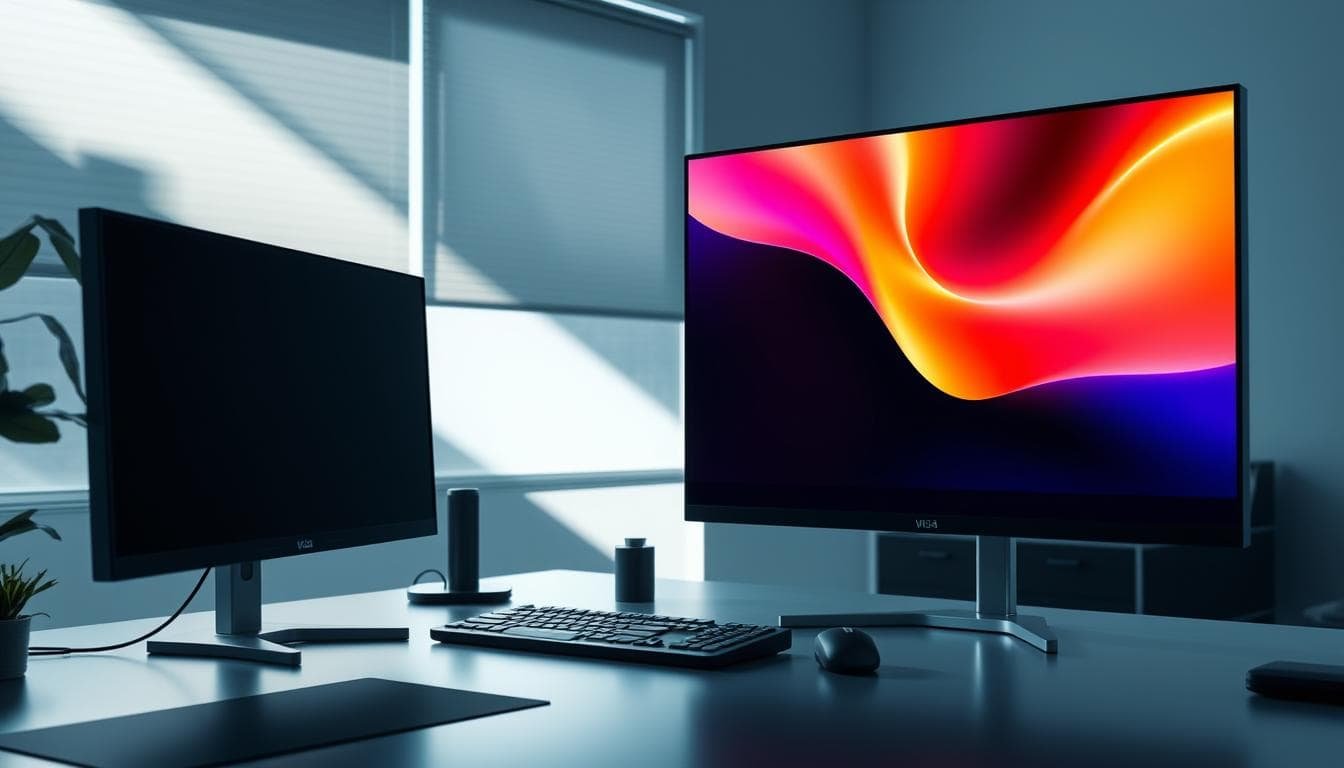
We are cutting through the noise on a major workspace debate. Many professionals face a critical choice: expanding their digital workspace with two separate screens or a single, expansive ultrawide display. The goal is clear—maximizing output and workflow efficiency.
Research consistently shows that multi-screen arrangements can significantly boost performance. Some studies point to output increases of 40% or more. However, this gain is not automatic. It depends entirely on selecting the right configuration for your specific tasks and physical space.
This decision transcends simple aesthetics or personal taste. It’s a strategic match between your screen real estate and your daily work. Whether you code, design, analyze data, or create content, the physical layout of your displays matters. We will dissect the evidence-based pros and cons of each option.
Our analysis draws from real-world case studies and professional best practices. We move beyond theory to deliver actionable intelligence. By the end, you will know which investment delivers the highest return for your unique work style, desk, and budget.
Key Takeaways
- Multi-screen configurations can dramatically increase work output when chosen correctly.
- The best choice hinges on your specific daily tasks and available desk space.
- This is a strategic decision, not merely one based on appearance.
- We provide evidence-based advantages from real professional use cases.
- The goal is to identify the configuration with the highest ROI for your situation.
- Proper implementation is just as critical as the initial selection.
Introduction to Monitor Setups and Productivity
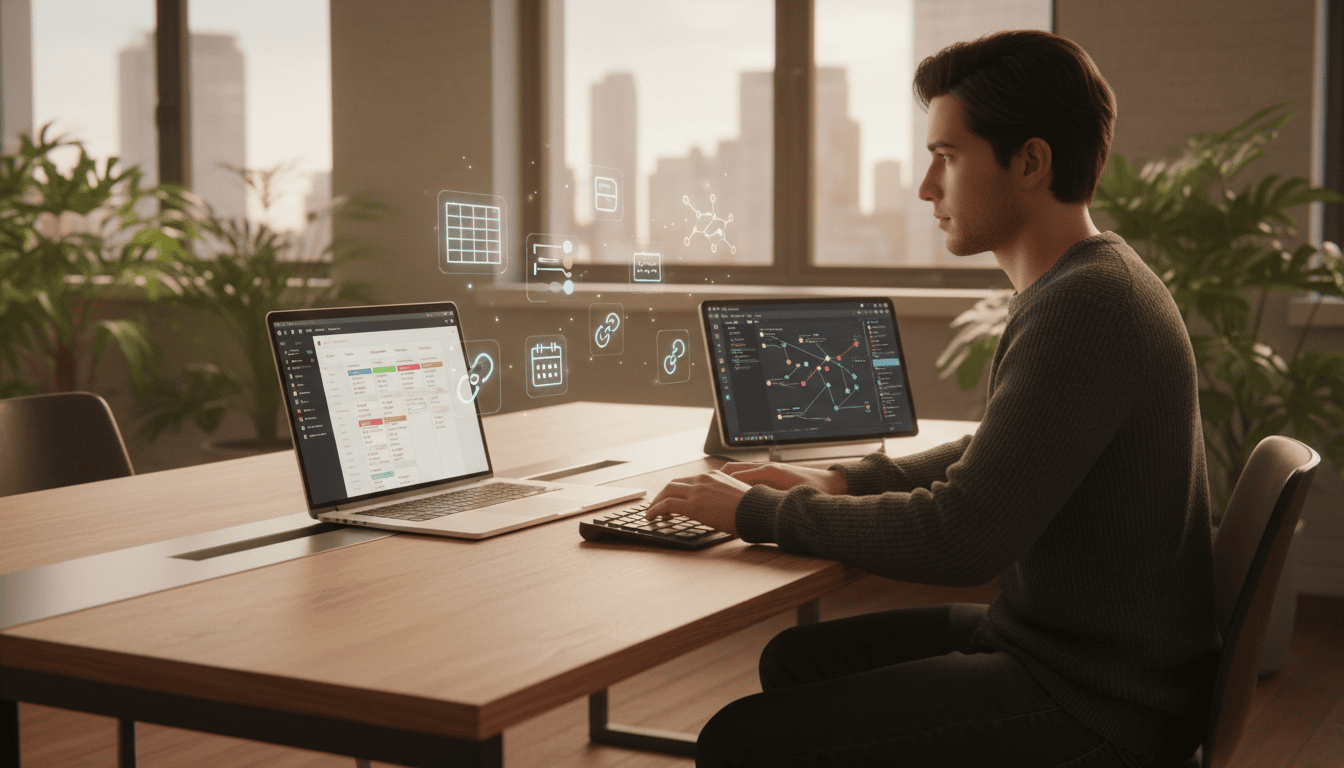
Let’s cut to the chase: expanding your digital workspace isn’t a matter of preference; it’s a quantifiable efficiency upgrade. The modern professional typically runs 7 to 10 applications at once. Email, spreadsheets, and communication tools demand constant visibility.
Juggling these on one screen creates a hidden tax. Each time you alt-tab between windows, you lose focus. This “context switching” accumulates into significant lost time every week.
Adding a second monitor was “the easiest, most cost-effective and significant improvement in my work since I replaced my modem with high-speed cable.”
We are not discussing minor gains. Proper multi-screen arrangements can boost task completion by 20% to 50%. The question is no longer if you need more space, but which configuration delivers the highest ROI for your specific work.
The decision should be treated as a strategic business investment. The right choice directly impacts your output and bottom line.
| Workflow Challenge | Single-Screen Impact | Multi-Screen Solution |
|---|---|---|
| Frequent app switching | High cognitive load, slower task completion | Dedicated space for each tool, seamless workflow |
| Data comparison | Constant scrolling and window resizing | Side-by-side view for instant analysis |
| Reference material | Obscured by active windows | Permanent visibility on a secondary display |
Understanding the Monitor Setup for Productivity
We reject the notion that any multi-screen arrangement automatically boosts productivity—the gains depend on strategic alignment. Your digital workspace functions as an extension of your cognitive process.
Screen real estate serves as your command center. The more organized your tools and information, the less friction exists between thought and execution. This principle drives measurable results.
Different professions demand distinct configurations. A developer’s needs differ fundamentally from a video editor’s workflow. One-size-fits-all recommendations fail here.
“The optimal screen configuration reduces cognitive load by keeping essential tools permanently visible, eliminating the mental tax of window management.”
We measure success in concrete metrics: task completion time, error rates, projects delivered. Not subjective feelings of efficiency.
| Workflow Type | Primary Need | Ideal Configuration |
|---|---|---|
| Data Analysis | Side-by-side comparison | Equal-sized displays |
| Creative Work | Canvas + tools visibility | Primary + secondary setup |
| Development | Code + documentation access | Vertical + horizontal arrangement |
| Communication-heavy | Constant app visibility | Multiple dedicated screens |
Understanding your actual workflow determines the optimal monitor configuration. Which applications run concurrently? How often do you reference multiple documents?
The right choice delivers measurable ROI. It’s not about adding screens—it’s about designing your digital environment for peak performance.
Benefits of Dual Monitors on Productivity
Dual screen configurations aren’t just about extra space—they fundamentally reshape how professionals interact with their digital tools. The documented 40%+ efficiency gains stem from eliminating disruptive window switching.
Enhanced Multitasking and Reduced Window Switching
Two displays transform sequential tasks into parallel workflows. The constant alt-tab dance disappears when reference materials remain permanently visible. This reduces cognitive load and maintains focus.
Different professions leverage this advantage uniquely. The side-by-side arrangement allows dedicated space for active tasks versus support information.
| Professional Field | Primary Display Use | Secondary Display Use | Key Benefit |
|---|---|---|---|
| Software Development | Code writing | Documentation/terminal | Parallel development cycle |
| Financial Analysis | Model building | Real-time market data | Reduced information latency |
| Content Creation | Editing timeline | Asset libraries/communication | Workflow continuity |
| Customer Service | Active communication | Ticket management | Efficient queue handling |
Real-World Examples in Various Professional Fields
Developers report transformative changes when code and documentation share simultaneous visibility. Financial analysts gain critical advantages monitoring live data while building models.
Content creators maintain workflow momentum with perpetual access to tools and assets. The strategic advantage lies in keeping essential applications within peripheral vision.
Comparative Advantages of Ultrawide Monitors
Moving beyond the dual-screen debate, ultrawide configurations offer a unified canvas that redefines workspace continuity. These displays typically measure 34″ or 49″ with 21:9 or 32:9 aspect ratios.
The most significant advantage lies in the seamless surface. Ultrawide monitors eliminate the center bezel gap inherent in dual configurations. This creates an uninterrupted visual field.
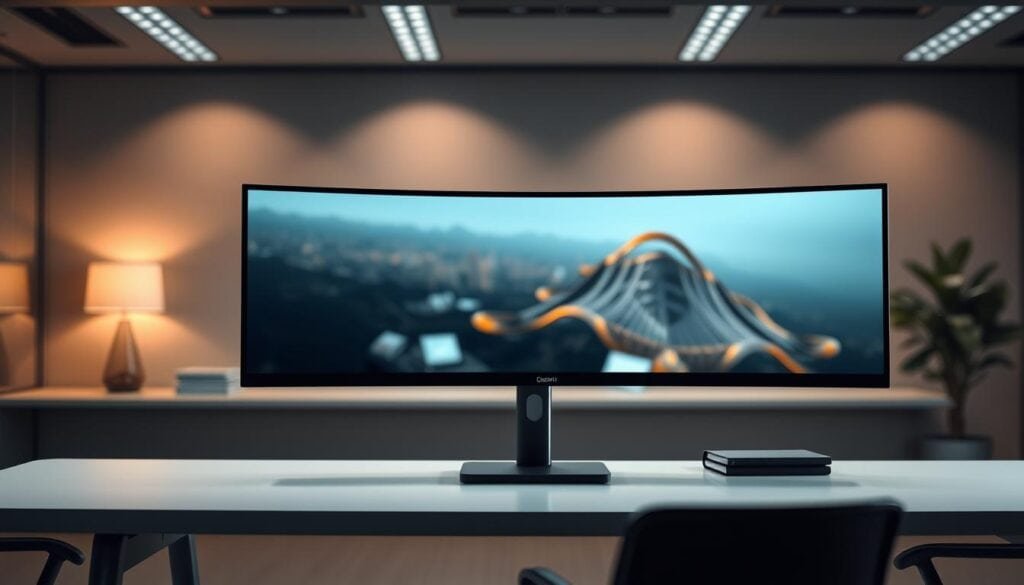
Professionals benefit from panoramic workflows. Video timeline editing, wide spreadsheets, and immersive experiences gain substantial value from this continuity. The horizontal expanse supports tasks requiring broad visibility.
Cable management becomes remarkably simple. One power cable and one display connection replace the clutter of multiple connections. This creates a cleaner aesthetic and reduces desk complexity.
For those prioritizing focused work, ultrawide configurations reduce visual distraction. The cohesive viewing experience minimizes the physical division between information zones. This supports deep concentration.
However, these displays typically cost more per square inch than dual monitors. They also lack flexibility for independent positioning or rotation of separate screens.
Ultrawide solutions work best for workflows benefiting from horizontal continuity. Wide code editors, expansive design canvases, and financial dashboards represent ideal use cases. The technology excels where separation creates workflow friction.
Enhancing Workflow for Creative Professionals
We challenge the assumption that creative professionals simply need more screen real estate—the critical factor is functional zoning. Creative work demands clean separation between active canvas and supporting tools.
Cluttered interfaces stifle creativity. When tool panels compete with the main workspace, efficiency suffers dramatically.
Separation of Canvas and Tool Panels
Dual displays create distinct functional zones. This mirrors traditional studio layouts where canvas and tools occupy separate physical spaces.
Graphic designers gain significant advantages. They dedicate one screen to the full design canvas in Photoshop or Illustrator. The second display organizes brushes, swatches, and layer panels.
Photographers maintain creative flow during detailed edits. High-resolution images get full-screen attention while Lightroom libraries remain visible on the auxiliary display.
Optimized Design and Video Editing Processes
Video editors experience transformative workflow improvements. One screen displays the full timeline and preview. The other manages bins, effects controls, and audio mixing interfaces.
3D artists separate modeling viewports from rendering progress and material editors. This creates a true digital studio environment.
The key insight: dual configurations aren’t about more space. They’re about creating intentional separation that reduces interface clutter and maintains focus.
Optimizing Dual Monitors for Software Development
We’ve observed that developers using dual screens experience a fundamental shift in how they approach complex programming tasks. The evidence is compelling: Darrell Norton’s research showed 10% more lines of code daily and 26% fewer defects after implementing multiple displays.
Streamlined Code and Documentation Management
The development workflow naturally splits between action and result. Professionals write code on one display while viewing outputs, documentation, or test results on the other. This creates a parallel rather than sequential process.
Web developers gain immediate visual feedback by keeping their editor on the primary screen and live website rendering on the secondary display. Data scientists run analysis scripts on one screen while examining visualizations on the other.
Supporting Debugging and Testing Simultaneously
DevOps engineers write infrastructure scripts on one display while monitoring real-time system metrics on the other. Mobile app developers code in Android Studio or Xcode while running emulators simultaneously.
Scott Hanselman, after 25+ years with multiple displays, identifies three screens as the sweet spot. The center screen hosts the primary IDE while side screens handle documentation and debugging applications.
| Developer Role | Primary Screen Use | Secondary Screen Use | Key Benefit |
|---|---|---|---|
| Web Developer | Code editor (HTML/CSS/JS) | Live browser rendering | Instant visual feedback |
| Data Scientist | Jupyter/RStudio scripts | Data visualizations | Analytical continuity |
| DevOps Engineer | Infrastructure code | System metrics/logs | Real-time monitoring |
| Mobile Developer | Android Studio/Xcode | Device emulators | Simultaneous testing |
The transformation is clear: dual arrangements turn fragmented tab-switching into integrated workflows where the entire development loop remains visible.
Maximizing Financial Trading and Data Analysis Efficiency
Wall Street trading floors popularized the multi-screen setup for one undeniable reason: information latency equals financial loss. This principle now applies to every professional dealing with real-time markets and complex data sets.
Dual displays are a strategic necessity, not a luxury. They transform sequential information checking into parallel data consumption. Critical streams remain persistently visible.
Consider the day trader. They need live charts, order books, and news feeds open simultaneously. A single screen creates dangerous blind spots. The same logic applies to analysts comparing financial statements across sectors.
Cryptocurrency trading demands even greater vigilance. Tracking price action across multiple exchanges reveals fleeting arbitrage opportunities. These windows close in seconds.
| Financial Role | Primary Screen Task | Secondary Screen Task | Strategic Advantage |
|---|---|---|---|
| Day Trader | Real-time chart analysis | News feeds & execution platform | Eliminates decision latency |
| Financial Analyst | Active model building | Comparative data sets | Accelerates pattern recognition |
| Crypto Trader | Exchange A price tracking | Exchange B & C price action | Enables arbitrage capture |
| Investment Advisor | Client portfolio review | Market research & trends | Delivers informed recommendations |
The core advantage is clear. In finance, multiple monitors ensure no critical data point is hidden when split-second decisions determine profit or loss.
Ergonomic Considerations for Multi-Monitor Setups
We treat ergonomics not as comfort but as performance engineering. Poor positioning creates measurable costs through neck strain, eye fatigue, and long-term musculoskeletal issues. These are quantifiable business concerns, not subjective discomfort.
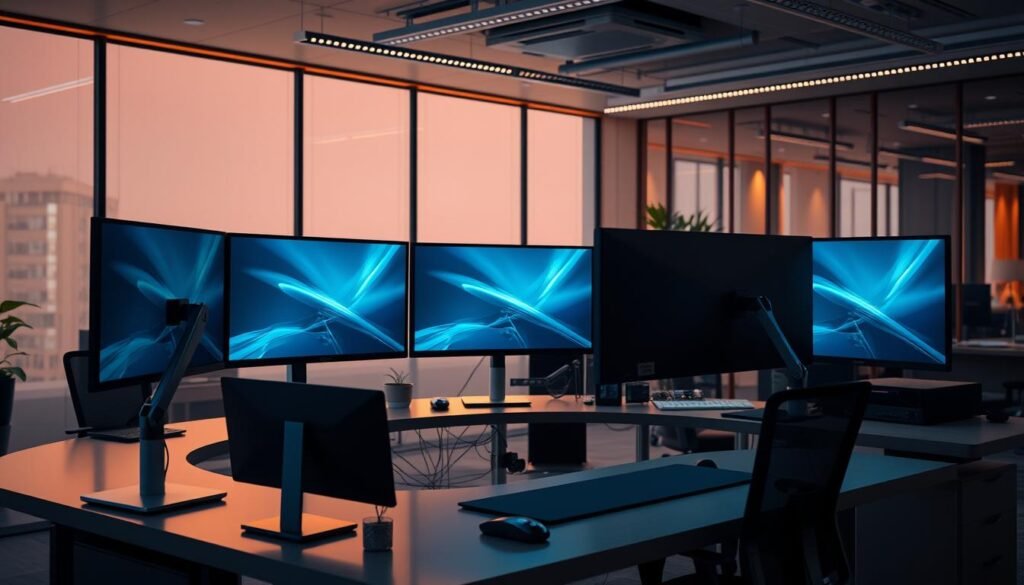
Proper Monitor Placement and Height Adjustments
Your primary display belongs directly ahead at eye level. Position it about an arm’s length away with the top at or slightly below eye level. This maintains neutral spine alignment during extended sessions.
Secondary screens should angle 30-35 degrees in a wrap-around configuration. This allows natural head rotation instead of constant neck twisting. The arrangement reduces strain while keeping information visible.
Monitor arms provide critical flexibility for precise positioning. They enable height adjustment, tilt, swivel, and screen rotation. These tools free up valuable desk space underneath your configuration.
Consider rotating one display to portrait orientation for specific workflows. Coding, document reading, and social media management benefit from vertical alignment. Ensure the rotation doesn’t compromise neck position or viewing angles.
Measurement matters: incorrect height forces neck extension or flexion. Wrong distance causes eye strain. These are failures that reduce output and increase injury risk over time.
Guide to Dual Monitor Desk Setup Essentials
We approach dual monitor desk configuration as a systematic engineering challenge rather than a simple furniture arrangement. The right components transform basic desk space into a strategic command center.
Essential gear selection follows a deliberate hierarchy. Each element serves a specific function in the overall system.
| Essential Component | Primary Function | Key Benefit |
|---|---|---|
| Two Compatible Monitors | Visual consistency across displays | Reduces eye strain and creates seamless workflow transitions |
| Monitor Arms/Stands | Precise positioning flexibility | Frees up critical desk surface area for optimal ergonomics |
| Ergonomic Desk & Chair | Foundation for extended use | Prevents posture issues that undermine long-term productivity |
| Docking Station | Centralized connectivity hub | Simplifies cable management for laptop users |
| Quality Cables/Adapters | Reliable signal transmission | Eliminates display issues and connection failures |
| Thoughtful Layout Plan | Spatial organization blueprint | Avoids cramped configurations that limit effectiveness |
Monitor arms represent a critical investment beyond basic stands. They enable dynamic adjustments throughout the workday.
The physical desk must accommodate both monitors plus essential tools. Insufficient space creates operational constraints.
Laptop users benefit tremendously from docking stations. These devices centralize multiple connections into one clean solution.
Cable quality often gets overlooked until problems emerge. Verify port compatibility before purchasing any adapters.
Layout planning precedes equipment acquisition. Map your desk space to ensure all components fit harmoniously.
Step-by-Step Installation of Monitor Brackets
We treat bracket installation not as a DIY challenge but as precision engineering that delivers measurable workspace ROI. The process follows straightforward mechanical principles that ensure long-term stability.
Tools and Preparation for a Secure Setup
Proper preparation eliminates installation anxiety. Begin with a laser stud finder to locate solid wood framing behind drywall. Mark stud edges with blue painter’s tape for visual guidance.
Verify weight capacity before mounting. Most modern LCD displays weigh 20-30 pounds without stands. Quality brackets support 40-50+ pounds, providing substantial safety margins.
Adjusting for Optimal Viewing Angles
Desk-mounted arms offer superior flexibility compared to wall options. They allow dynamic height, tilt, and rotation adjustments throughout the workday.
Wall-mounted brackets typically move horizontally with 15 degrees of vertical tilt. Consider your desk height carefully before installation, as changes require complete reinstallation.
Ensure your desk surface can handle clamp pressure. Glass, thin veneer, or chrome surfaces may not provide adequate support for heavy-duty arms.
| Mounting Type | Flexibility | Installation Complexity | Ideal Use Case |
|---|---|---|---|
| Desk-mounted Arms | High (full adjustment range) | Moderate (requires sturdy desk) | Dynamic workspace configurations |
| Wall-mounted Brackets | Limited (horizontal + 15° tilt) | High (precise stud location) | Permanent display positioning |
| Gas Spring Arms | Excellent (smooth height adjustment) | Moderate (desk clamp installation) | Frequent position changes |
Product options include gas spring arms supporting 13″-32″ displays (MI-1772) and heavy-duty arms for screens up to 35″ (MI-4882). These solutions cover most professional requirements with robust weight capacity.
Innovative Layout Ideas for Dual Monitor Arrangements
We dismiss the idea that dual monitor arrangements follow a single blueprint—your optimal layout depends entirely on task distribution and physical constraints. The physical arrangement of your screens creates distinct workflow patterns with measurable efficiency impacts.
Different professions benefit from specific spatial configurations. Your daily tasks determine whether symmetrical balance or focused asymmetry delivers superior results.
Symmetrical vs. Asymmetrical Configurations
Symmetrical layouts position both screens side-by-side at equal height. This creates balanced visual weight for professionals distributing attention evenly across applications.
Financial analysts comparing spreadsheets and developers testing code across environments gain significant advantages. The arrangement supports parallel task execution without dominant focus areas.
Asymmetrical configurations place the primary display directly ahead with the secondary screen angled 30-35 degrees. This optimizes workflows where one application demands concentrated attention while reference materials remain accessible.
Creative Ideas: Stacked, L-Shaped, and Floating Mounts
Stacked vertical arrangements conserve horizontal desk space effectively. Developers view more code lines while traders monitor vertically-stacked data streams. Proper ergonomic positioning prevents neck strain.
L-shaped desk setups create distinct work zones using corner space efficiently. Primary tasks occupy the main surface while communication tools reside on the perpendicular section.
Floating shelf or wall-mounted configurations liberate the entire desktop surface. This minimalist approach works exceptionally well in compact offices where every inch matters.
Each layout serves specific professional needs. The right choice transforms your physical workspace into a strategic advantage.
Comparing Dual Monitor vs Ultrawide Configurations in Gaming and Streaming
Gamers and streamers face a critical decision that directly impacts performance: the choice between panoramic immersion and functional separation. This isn’t about preference—it’s about tactical advantage.
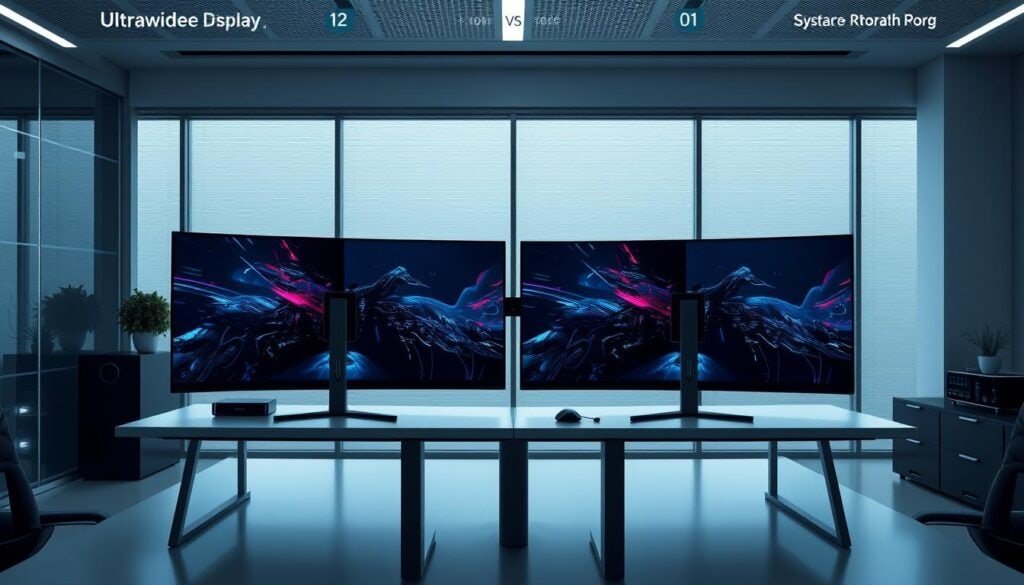
Extended Field of View and Separate Information Panels
Dual configurations excel at information management. Competitive players keep gameplay on the primary screen while tactical data remains visible on the secondary display. This eliminates menu navigation during crucial moments.
Streamers maintain broadcast quality by separating game action from production tools. Chat moderation, alerts, and analytics operate independently without visual interference.
Ultrawide solutions deliver seamless immersion. Racing and flight simulations benefit from continuous cockpit views. The absence of center bezels creates truly panoramic experiences.
The decision hinges on workflow priorities. Choose dual screens for distinct information zones. Select ultrawide displays for uninterrupted visual continuity.
Integrating Additional Screens for Enhanced Screen Real Estate
Industry leaders have validated what data confirms: there exists a precise sweet spot in multi-screen configurations. Moving beyond two displays requires strategic justification, not arbitrary accumulation.
Scott Hanselman’s extensive testing reveals the optimal threshold. After eight years of experimentation with configurations from two to five displays, he identifies three as the “real sweet spot for productivity—any more is overkill and any less cramps my brain.”
When Three Monitors or More Become the Ideal Setup
The center display hosts primary work like coding or writing. Side screens angle 30-35 degrees as peripheral information zones. This cockpit arrangement maintains focus while providing essential visibility.
Real-world applications demonstrate clear functional separation. Developers use the center for their IDE, left for documentation, and right for application output. Content creators dedicate displays to editing software, reference materials, and communication tools.
Notable figures including Bill Gates and Larry Page use three-display configurations. This validates practical benefits rather than screen accumulation for its own sake. The jump from one to two displays delivers the largest productivity gain. Adding a third provides smaller but valuable returns for information-intensive workflows.
Four or more displays typically introduce more complexity than value. Three screens work best for roles requiring simultaneous data stream monitoring. The configuration naturally separates into distinct functional zones without arbitrary additions.
Practical Tips for Choosing the Right Monitors and Accessories
We dismiss the common mistake of prioritizing individual specs over system compatibility when selecting displays. Your hardware choices either create a cohesive visual environment or introduce workflow-disrupting inconsistencies.
Specification matching transforms random acquisitions into a strategically integrated system. Identical size, resolution, and panel type prevent eye strain from brightness or color mismatches.
Matching Monitor Specifications and Ergonomic Accessories
Creative professionals require 4K resolution with factory color calibration. The Dell UltraSharp U2723QE delivers 100% sRGB coverage ideal for design work.
Developers benefit from 27″ WQHD displays showing code clearly. Budget-conscious users achieve excellent results with matched 24″ Full HD units.
Ergonomic arms aren’t luxury additions—they’re functional necessities. Proper positioning maintains neutral spine alignment during extended sessions.
Cable Management and Connectivity Considerations
Verify your graphics card supports dual outputs before purchase. USB-C models with power delivery simplify laptop connections through single-cable solutions.
The LG 27UP850-W provides 96W charging alongside video transmission. This eliminates cable clutter that undermines workspace organization.
Thoughtful connectivity planning ensures your investment delivers maximum returns. System integration matters more than individual component specs.
Crafting a Customized Desk Setup for Your Home Office
Your home office desk configuration demands personalized engineering rather than generic templates. We reject cookie-cutter solutions that ignore individual workflow patterns.
Begin with a thorough audit of your daily operations. Track which applications run simultaneously and how often you reference multiple documents. This analysis reveals your true spatial requirements.
| Workflow Pattern | Configuration Decision | Space Allocation |
|---|---|---|
| Continuous monitoring | Dual displays for parallel visibility | Wide desk surface |
| Focused deep work | Single expansive screen | Minimal peripheral distraction |
| Document-heavy tasks | Vertical orientation options | Height-adjusted positioning |
Most professionals achieve maximum benefit from two well-positioned displays. Avoid adding screens without clear functional justification. Consider your physical constraints realistically—desk depth, wall space, and viewing distances determine optimal results.
Invest proportionally in supporting infrastructure. A premium display investment requires equally robust furniture and ergonomic supports. Plan cable management from the start using trays and sleeves to prevent operational complications.
Your home office evolves as software and requirements change. Build flexibility with adjustable arms and modular accessories that adapt rather than requiring complete replacement.
Conclusion
The evidence leaves no doubt: expanding your digital workspace delivers measurable returns. The choice between configurations depends entirely on how you process information throughout your work day.
Dual monitors excel when you need distinct zones for different tasks. This arrangement supports parallel workflows that save valuable time. Ultrawide displays offer seamless immersion for panoramic applications.
Your monitor setup must align with your actual workflow, not hypothetical scenarios. The right configuration reduces friction between thought and action. This is the true way to boost productivity.
Start with two quality monitors if you use one screen now. This investment provides the most significant jump in screen real estate. Proper implementation ensures your equipment enhances, rather than hinders, your work.
The goal is strategic expansion, not accumulation. Design your digital environment to match your cognitive process. This approach delivers more value with less strain.
FAQ
Is a single screen or two screens better for my desk space?
We recommend two screens for most professionals. A dual monitor configuration provides superior screen real estate, allowing you to view applications like email and data analysis tools side-by-side without constant window switching. This setup dramatically cuts down on the time wasted toggling between software.
What’s the main advantage of an ultrawide display over multiple monitors?
The primary benefit is an uninterrupted field of view. An ultrawide screen eliminates the bezel in the middle of your work, creating a seamless canvas. This is ideal for video editing or viewing wide financial charts, as information flows continuously across one large display.
How do I manage windows effectively on a dual monitor setup?
Use built-in operating system features or third-party software. Windows Snap Assist and macOS Split View help you quickly arrange applications across your screens. For advanced control, tools like DisplayFusion allow for custom layouts, saving different configurations for various tasks like coding or trading.
Can my computer support a second monitor?
Most modern computers can. Check your PC or laptop for available video ports like HDMI, DisplayPort, or USB-C. If ports are limited, a docking station can provide the necessary connectivity. The key is ensuring your graphics card can handle the combined resolution of both displays without lag.
Are monitor arms worth the investment for a home office?
Absolutely. Monitor arms free up valuable desk space and offer unparalleled ergonomic adjustment. You can easily position your screens at the perfect height and angle to reduce neck strain. This flexibility is crucial for long work days and creates a cleaner, more professional-looking workspace.
What’s the best layout for software developers?
Developers benefit greatly from a symmetrical dual monitor arrangement. Keep your code editor on one screen and your live application, documentation, or terminal on the other. This separation supports simultaneous coding and debugging, streamlining the entire development process.